![Juno Logotype Blue.png]](https://knowledge.junojourney.com/hs-fs/hubfs/Juno%20Logotype%20Blue.png?height=40&name=Juno%20Logotype%20Blue.png)
All content creation options are accessible from your Create area.
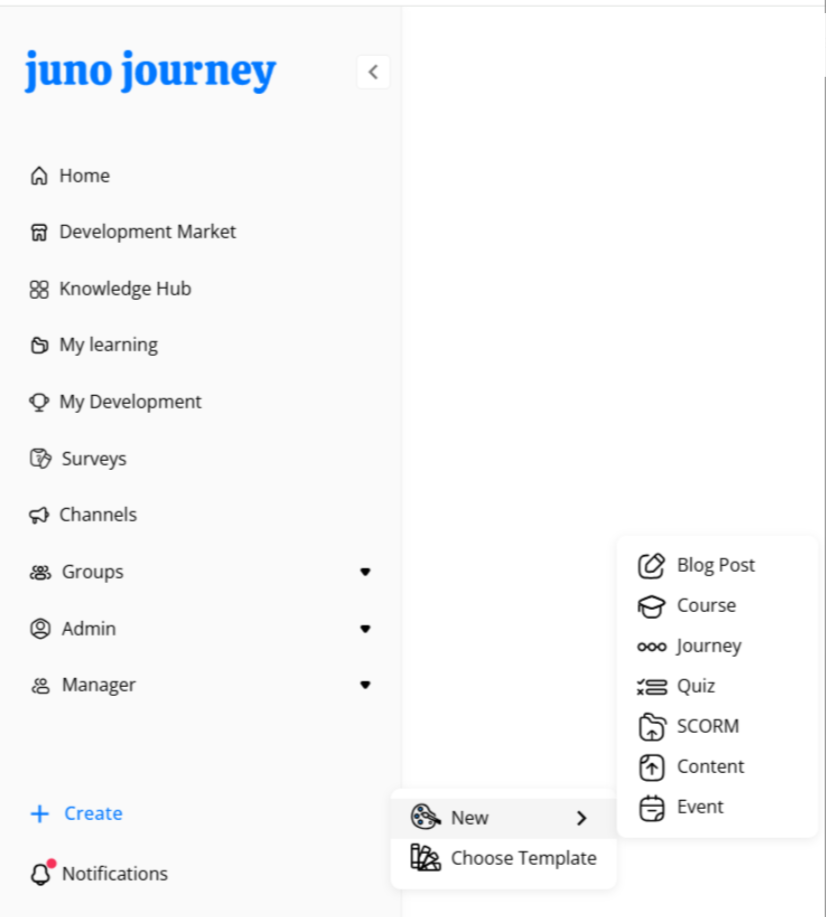
To add new content, go to the left sidebar and click the + Create button. A menu will appear with options for creating new items.
Select New, and you will see a list of content types you can add:
-
Blog Post – Share updates, articles, or announcements with your users.
-
Course – Create structured learning content for learners.
-
Journey – Build a learning path by combining multiple courses or materials.
-
Quiz – Add assessments to test knowledge and understanding.
-
SCORM – Upload SCORM packages from external learning tools.
-
Content – Upload or share materials such as files, videos, or documents.
-
Event – Create and manage learning or organizational events.
You can also choose Choose Template if you want to create content using an existing template.
Now you have to choose whether you'd like to upload the content to your personal content page or share it to the Company Academy, for the whole company to see.
You can always publish or unpublish content later.
Now choose either Link or Embed, or add content from cloud storage or upload a file.
For example, if you want to add a YouTube file, add the URL, or Embed code, you'll see more options to add to your content.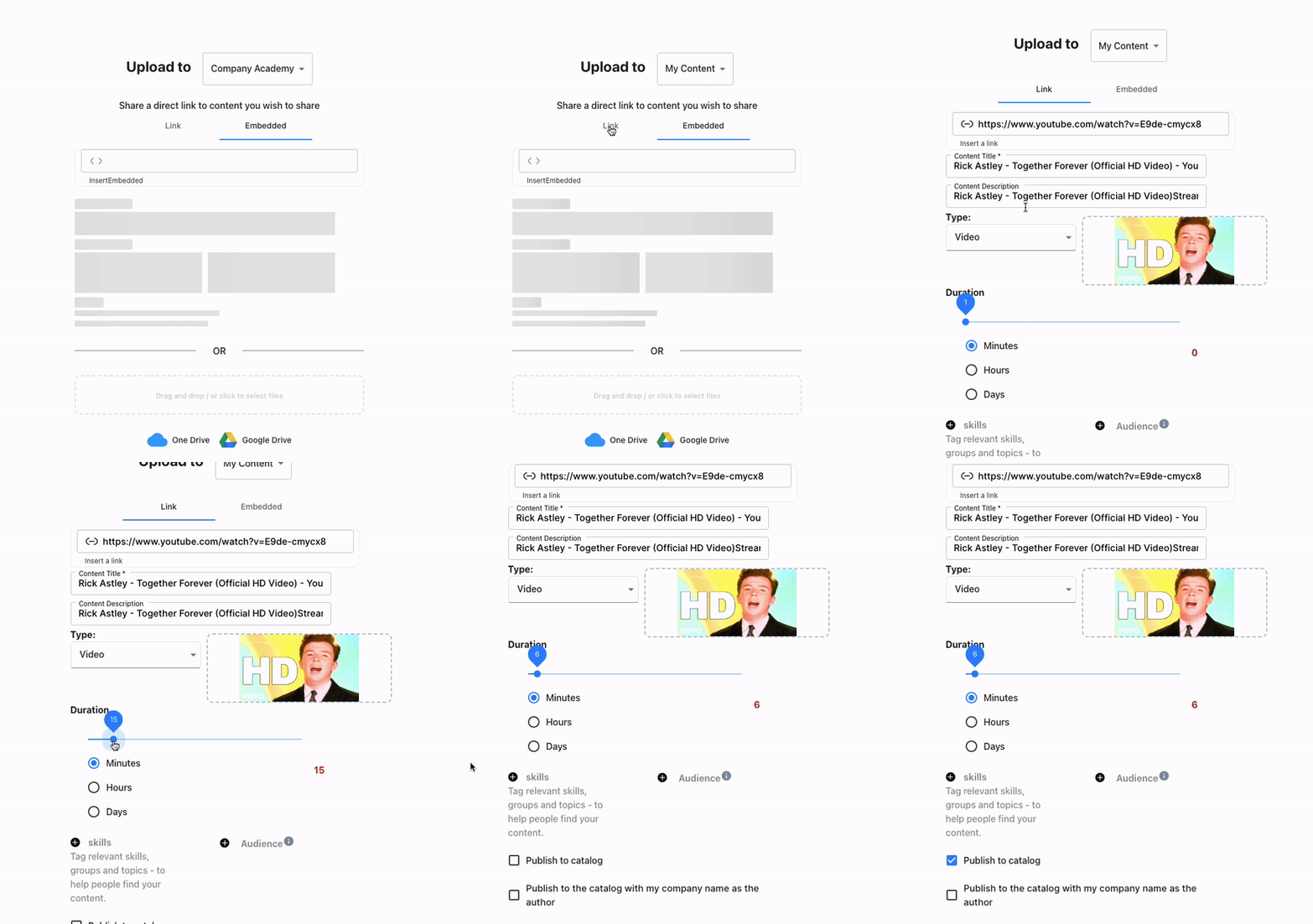
You can add duration information to your video, tag relevant skills to help people find your content, and restrict content availability using the Audience button.
Now you're ready to share your content with the world (or maybe just with your company, for now).
Need help?
💡Encountered an issue? Need further details?
Contact Support at support@junojourney.com