![Juno Logotype Blue.png]](https://knowledge.junojourney.com/hs-fs/hubfs/Juno%20Logotype%20Blue.png?height=40&name=Juno%20Logotype%20Blue.png)
The manual process differs from the automatic one in the following aspects:
Flow - Includes 4 main steps
1. Download template/Import CSV based on Juno’s template.
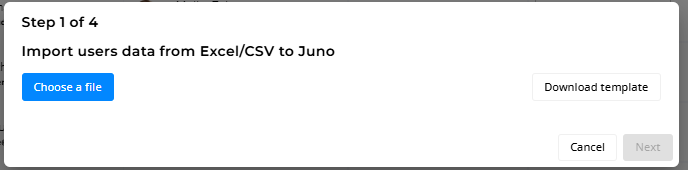
💡 When you upload a CSV - Invitations are not sent to the user!
The Admin needs to send invitations manually.
2. The Juno CSV Template - uploading the file and map your data to Juno fields
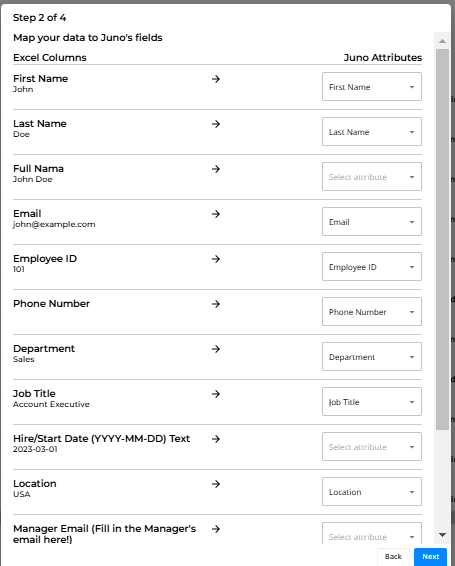
💡If you have a hire date field - Make sure that in the CSV, that field is defined as a “number format” and not text (otherwise it will choose a random number such as 1970)
3. Choosing a unique user identifier (email or user ID - email is preferable as it is more common)
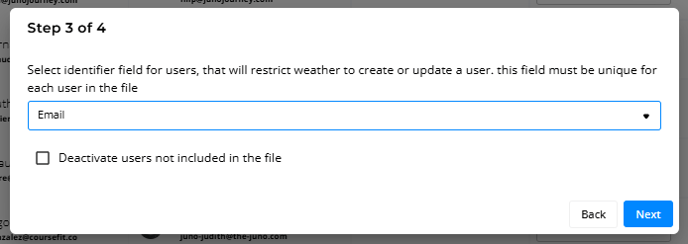
💡Always include all existing employees by using the latest version the client uploaded, and on top of it add any new members.
Make sure to stick to the fields in the Juno CSV template!
4. Update users
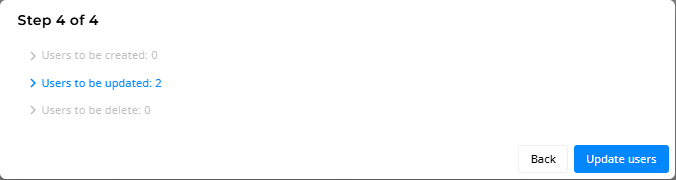
💡When uploading users, you have option to choose how to handle the users not in the file, to deactivate them or take no action.
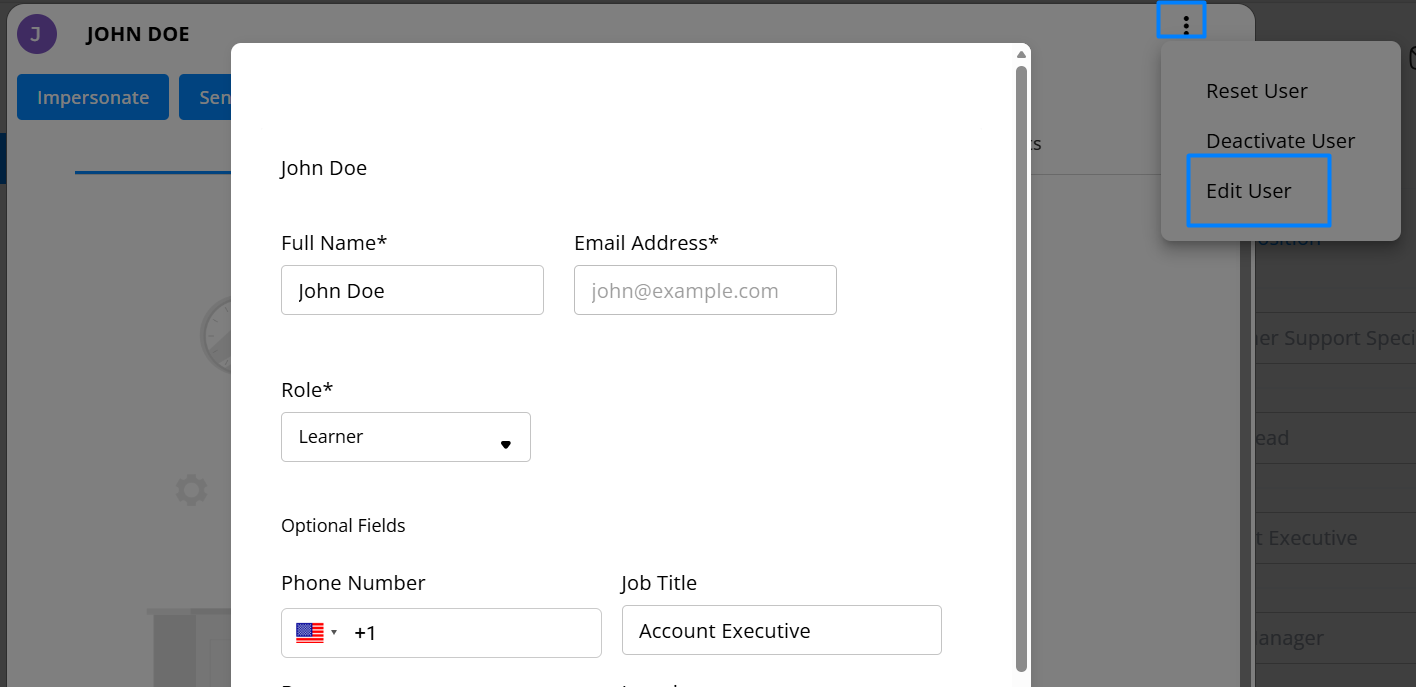
Edit users
With appropriate permission, the users can be edited in the employee's table by selecting the three dots in the upper right corner when opening the user:
Need help?
Encountered an issue? Was your purchase declined? Need further details?
Contact Support at support@junojourney.com.