![Juno Logotype Blue.png]](https://knowledge.junojourney.com/hs-fs/hubfs/Juno%20Logotype%20Blue.png?height=40&name=Juno%20Logotype%20Blue.png)
1. Understanding Survey Contexts
A survey context adds specific information to a survey, helping you define who or what the survey is about. This makes survey results more meaningful and easier to analyze.
Examples of Contexts:
-
User context: For example, Manager A evaluating Employee B.
-
Unit context: For example, Survey for Course C.
-
Session/Event context: For example, Survey about Training Session X.
These contexts let you filter surveys, analytics, and reports by roles, departments, locations, events, or individuals.
2. Where You’ll See Survey Contexts
In the Survey Creation Page
If you have permission to create surveys, you’ll see two options:
-
Standard Survey: A simple survey without context.
-
Context-Based Survey: Requires selecting a relevant context (like a team, manager, or department).
Look for the “Create Survey with Context” button when starting.
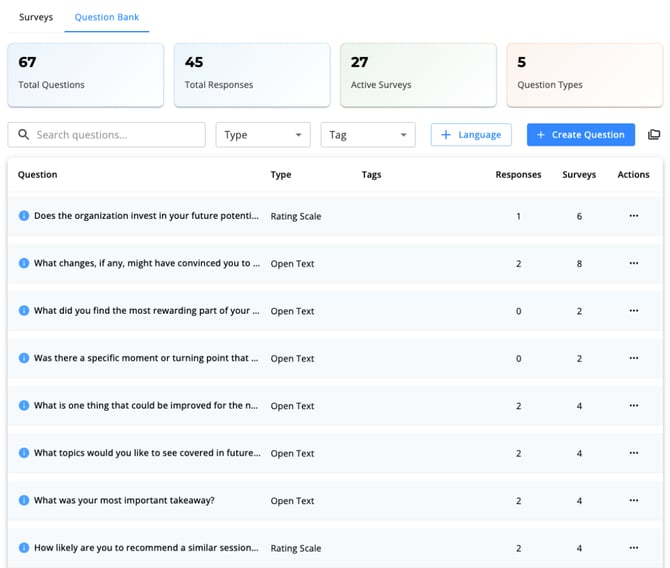
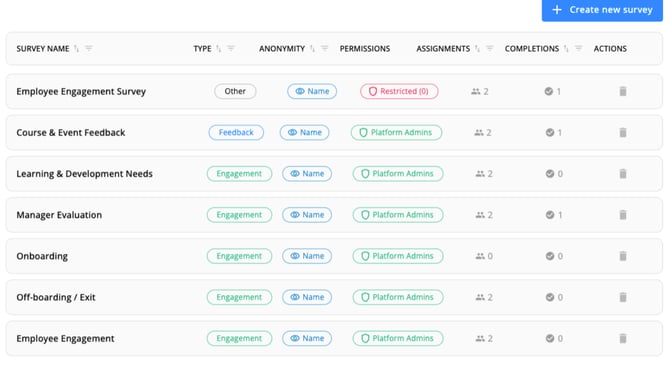
In the Surveys List
If your organization uses contexts, the survey lists and analytics will automatically adapt to show this information.
3. Selecting a Survey Context
When creating a context-based survey, follow these steps:
-
Choose the context type — such as user, unit, or session.
-
Select the specific item — for example, an employee’s name, course title, or training session.
You might see filtering options like:
-
Department
-
Location
-
Role
-
Event or Instructor
Example Options:
-
“Manager reviewing direct report”
-
“Survey for onboarding course”
-
“Feedback for training event”
4. How Contexts Work Behind the Scenes
While you don’t need to know the technical details, it’s helpful to understand that the system automatically fetches and displays available contexts depending on:
-
The survey type (engagement, feedback, general)
-
The available context records (users, units, or sessions tied to that survey)
5. Viewing and Filtering Analytics
Gain insights into individual question performance across all your surveys to see a trend and refine future feedback collection.
After your survey receives responses, you can:
-
Filter analytics by context, for example: Show feedback for Department X.
-
Compare results between contexts, such as: Manager A vs. Manager B’s teams.
This makes it easy to identify trends, strengths, and areas for improvement across different groups.
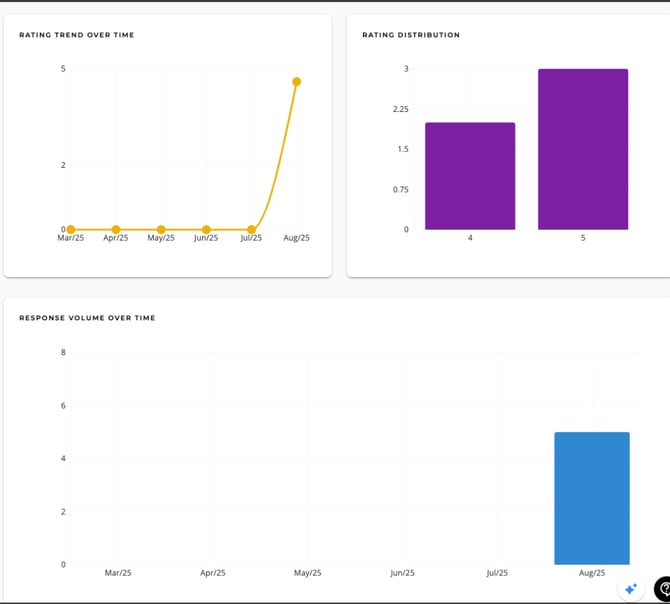
New analytics view:
General Tab - Survey View Displays all survey responses in a unified view with inline user actions (now only delete user response). Bring course-level user management capabilities directly into survey analytics for immediate response to feedback.
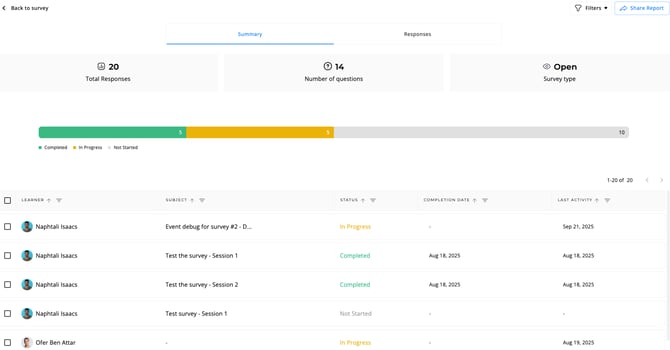
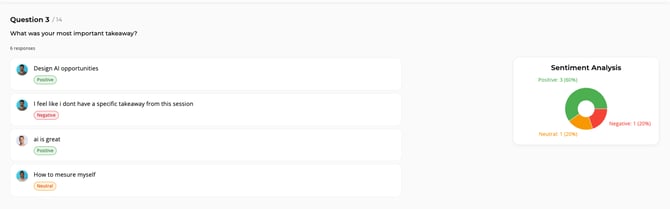
Responses Tab- Redesigned survey response layout with interactive drill-down functionality. Click any response to explore detailed answer patterns.
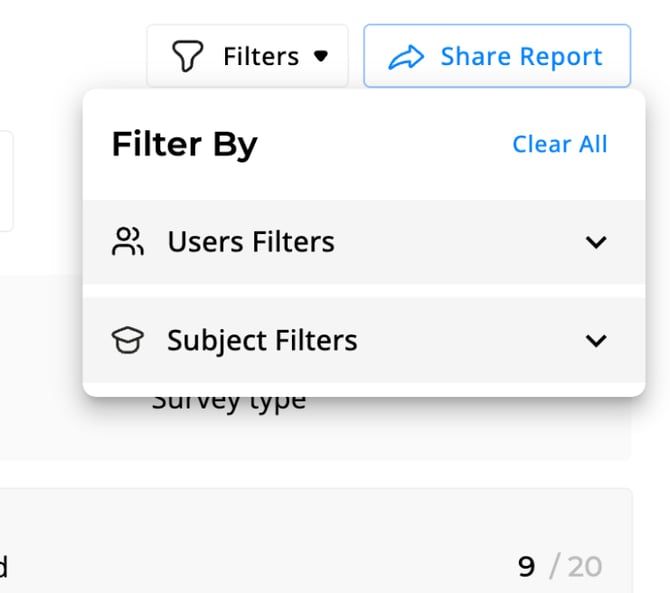
Filtering responses based on respondent (user, role, department) or content attributes (course name, creator, completion date). Provides granular control for analyzing learning engagement and outcomes.
6. Permissions and Access
Context-based surveys are available only if you have the correct permissions. If you can’t see the option to create them, contact your system administrator to enable it for your account.
7. Example Use Cases
Employee Evaluation
-
A manager starts a survey to review an employee.
-
They select the employee as the survey context.
-
The results are automatically linked to that employee for easy tracking.
Course Feedback
-
HR creates a feedback survey for onboarding sessions.
-
They select the “course name” as the context.
-
All responses are grouped and analyzed by course.
8. Troubleshooting Tips
-
Can’t see context survey options?
-
Contact your admin to enable the feature.
-
-
Not seeing enough context options?
-
Make sure the relevant data (like users, courses, or sessions) exists in your system.
-
 Encountered an issue? Need further details?Contact Support at support@junojourney.com.